19.1. Polls
Polls are the estimations based on the public opinions.
The polls appear only between the set start date & time to end date & time.
Polls are created and assigned to the user groups.
Procedure to create polls:
* Step 1: Create polls by creating poll type questions.* Step 2: Assign to the user groups* Step 3: View poll responsesPolls are created based on 3 types of questions:
o Yes/No: Type yes/no question text. Define the correct answer. Feedbacks can be added that are displayed to users after submitting the answer.o True/False: Type true/false question text. Define the correct answer. Feedbacks can be added that are displayed to users after submitting the answer.o Multiple Choice Questions Single Answers: This option allows users to select one answer choice from a list of choices.
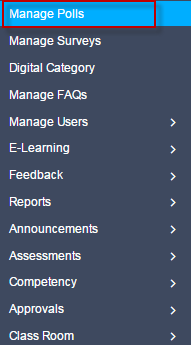
To access polls:
Click
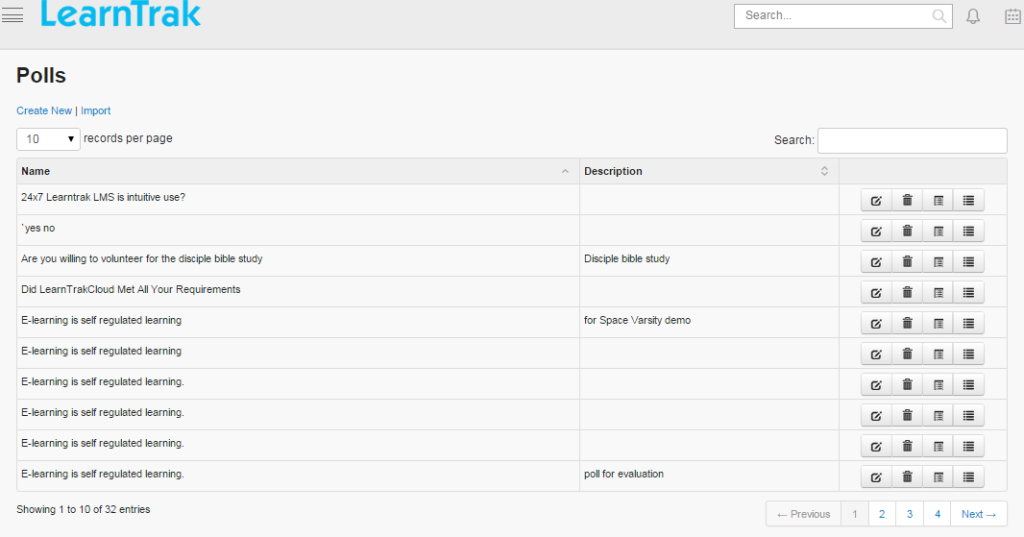
Admin > Manage Polls. The following Polls screen appears displaying details on polls.
19.1.1. Create New Poll
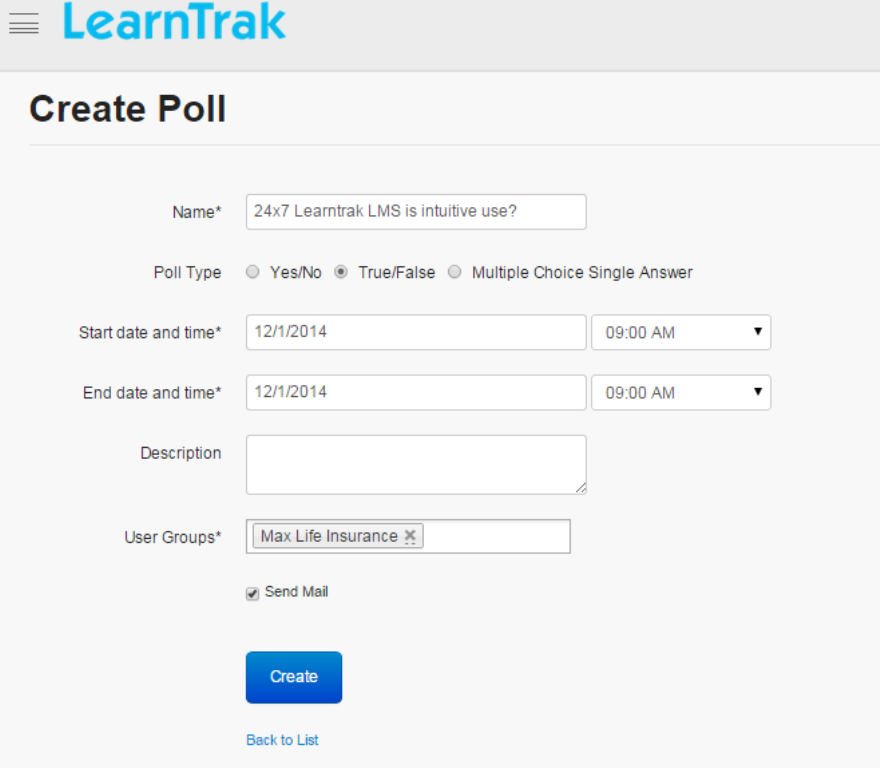
To create poll:
Click Create New. The following Create Poll screen appears with the respective details to be filled
Note
- The user groups lists the users under a particular group, to which the poll is mapped.
- Mail notifications are sent to all the users of the selected user groups.
19.1.2. Edit, Delete and View Poll Details
To edit poll:
Click Edit. The following Edit Poll screen appears with the chosen fields to be edited.
Note
- Others Can View Response option enabled to ‘Yes’, allows other users to view the response percentages.
- Multiple user groups can be added while editing and mail notifications can be sent to all the users under the particular groups.
To delete poll:
* Click Delete.
* The polls can be deleted based on two scenarios:
- Scenario 1: The polls can be deleted before the user participation.
- Scenario 2: The polls cannot be deleted after the user participation; i.e. if one or more users give the responses to the polls, then it cannot be deleted directly. To delete the poll, the responses must be deleted first.
To view poll details:
Click Details. The Polls Details screen appears displaying details on selected poll.
19.1.3. Poll Responses
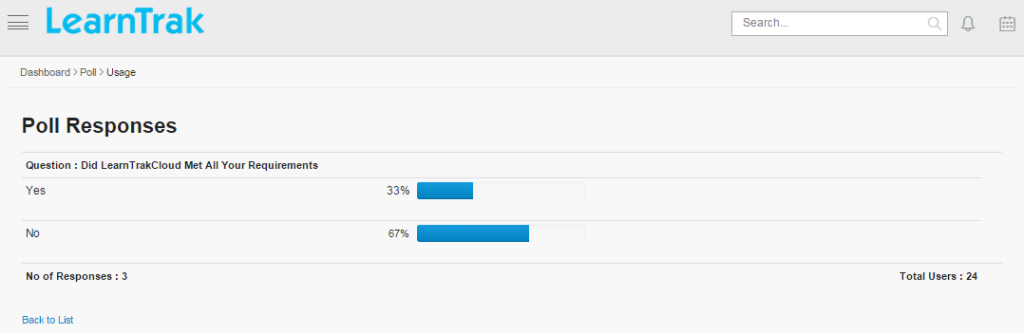
Poll responses display, the poll percentage of the number of users participated.
To display poll responses:
Click Responses
19.1.4. Import Polls
The polls can also be uploaded in a bulk. Refer Steps to Import Questions under Assessments.
19.1.5. Participate in Polls
- Users can participate in polls by providing responses for the published polls.
- Polls are not available again to the user’s once the response is given.
19.1.5.1. Steps to Participate in polls:
* Step 1: Click Dashboard > Polls. The following Polls screen appears displaying a list of polls published.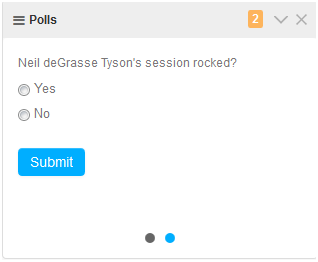 * Step 2: Select appropriate response option.* Step 3: Click Submit.