Custom Fields
The custom fields are the extra fields added to the list of existing fields.
The custom fields created are reflected on the Create User screen, under Learners module. Example: Department, Branch, Date of joining, College name, etc. are different types of custom fields.
The custom fields created are also reflected under the LMS Flexi reports.
- The fields will be listed as the filters only in the following reports:
- Test User Mapping
- User Resource Mapping
- User Login Report
- User Details Report
- User Program Mapping
- Program User Mapping
Note
The custom fields and the added character data limit are unlimited.
To access custom field:
Click
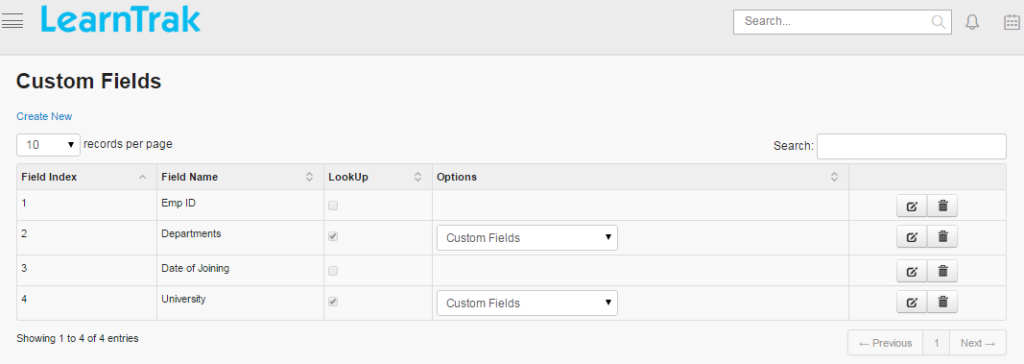
System > Custom Field. The following Custom Fields screen appears displaying information regarding custom fields added.
Create Custom Fields
- To create custom field:
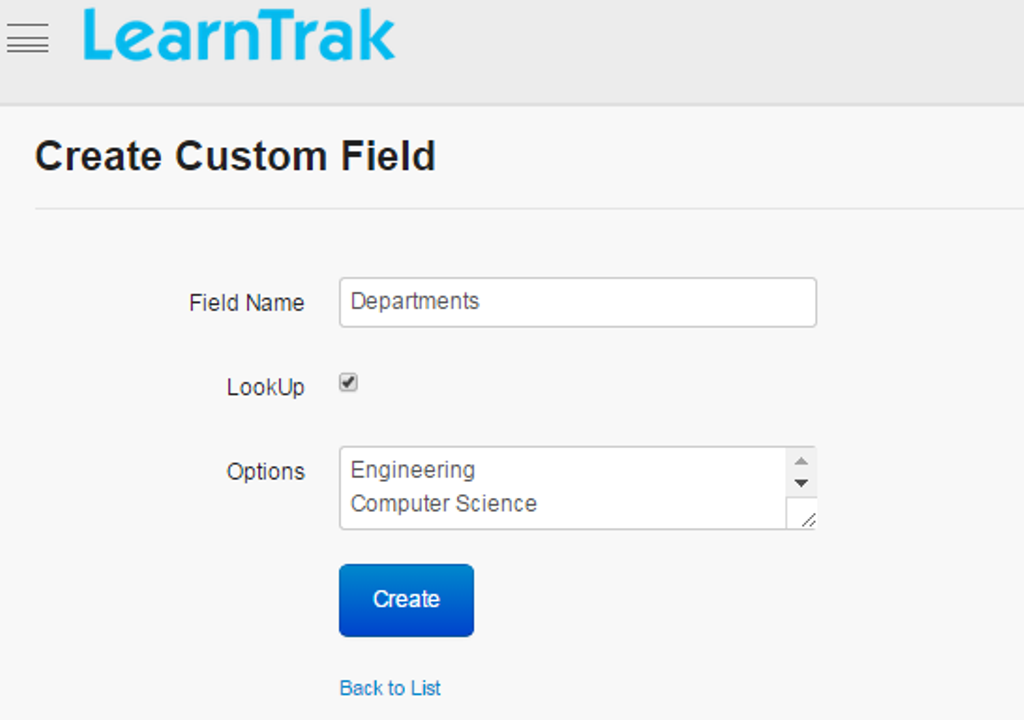
Click Create New. The following Custom Fields screen appears with the relevant fields to be filled.
Important
 when checked, the display options tab for the respective Field Name.
- The option field displays a list of values to be entered in the custom field.
Edit and Delete Custom Fields
- To edit custom field:
- Click Edit
 . The Edit Custom Field screen appears with the chosen fields to be edited.
 - To delete custom field:
- Click Delete
 . An alert box is displayed with the following message: “Do you want to delete the Field Name?”, click Ok or Cancel.