7.3.3. Create New Instances
When new training is created new instance are also created. Single classroom training can have multiple instances and single instance, can have multiple sessions. The session timings can include either actual session duration + break duration or only actual session duration for a single training instance. Single session timings can be broken down into multiple session timings. Training instances can be created, edited, cancel, deleted, publish training instances to the users, take user attendance, view feedbacks and session details, set reminders for the training, calculate the costs and reschedule the training instances.
To access instances:
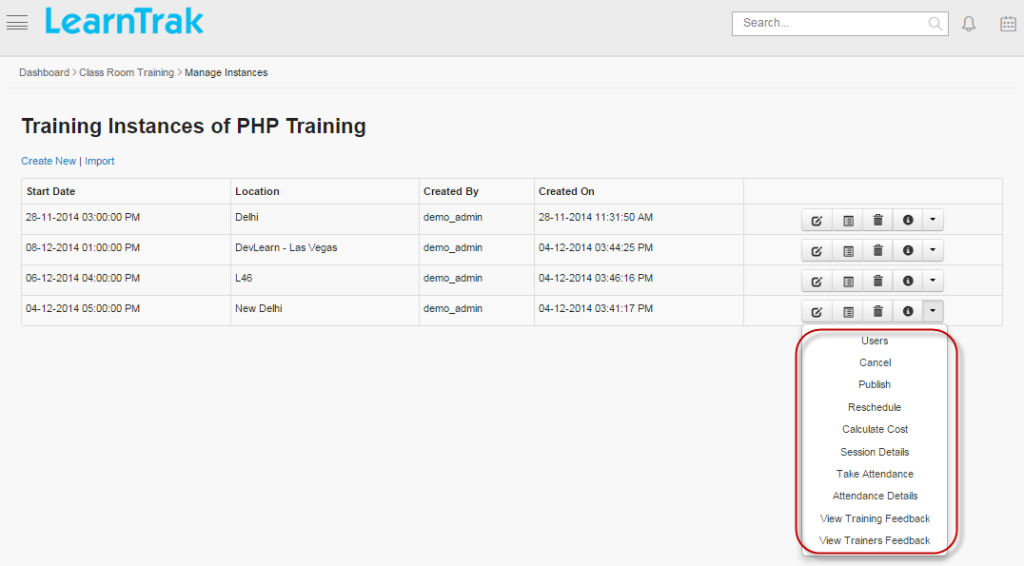
Click Instance of particular classroom training. The following Training Instances of training_name screen appear displaying details on training instances.
To create instances:
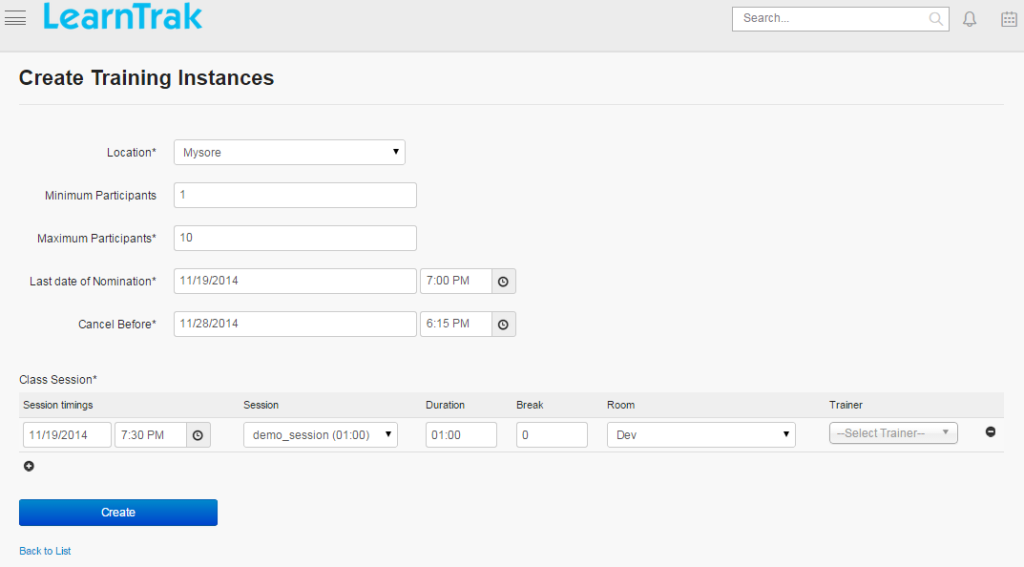
Click Create New. The following Create Training Instances screen appears with the required fields to be filled.
Note
- Maximum participants must be less than or equal to the training room capacity.
- Last date of nomination and Cancel Before date & time must be greater than session timings.
- A single instance, can have multiple class sessions.
- The instance created is assigned to either internal or external trainer. The external trainer will receive mail notification for the assigned training instances with the blog details.
- Mail notifications is sent to the users and marking an copy (cc) to the reporting manager/ supervisor on self-enrollment of training instance, re-scheduling of trainings and on cancellation of training instances.
 Adds multiple sessions to single instance and
  removes sessions from a particular instances.
7.3.3.1. Details of Training Instances
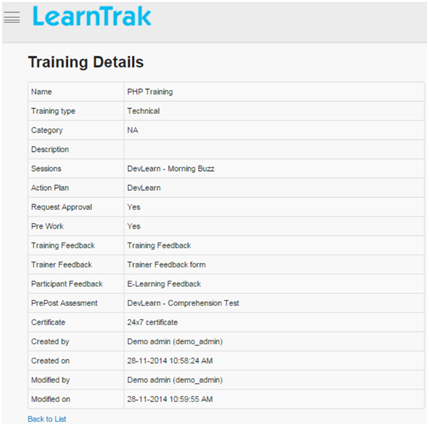
Displays the details of the training instances created for that particular training.
To view details:
Click Details
. The following Training Instances Details screen appears displaying details on particular training instances.
7.3.3.2. Edit, Delete and Cancel Training Instances
To edit training instances:
• Click Edit. The Edit Training Instances screen appears with the chosen fields to be edited.
• The training instances can be edited, only before the training instance starts. Once the training instance is started it cannot be edited or a warning message is displayed as “Cannot edit! Instance is in use”.To delete training instances:
• Training instances can be deleted before the training is published to users.• Click Delete.
• If trying to delete trainings after publishing it to users a warning message is displayed as ”Cannot delete! Instance is in use”.• On deleting the instance, the record of the particular training instance is deleted permanently from the DB.To cancel training instances:
• Training instances can be cancelled before it is published to the users.• Click Cancel. A pop-up screen appears with the reason for instance cancellation.• On cancelling the training instance, only the details of the particular training instance, the record is deleted from the DB.• The training instances cannot be cancelled after instance starts and attendance is taken: Once instance is started and the attendance already taken training instances cannot be cancelled. It displays an error message as “Attendance already taken! Cannot delete instances”.
7.3.3.3. User Details and Status Types
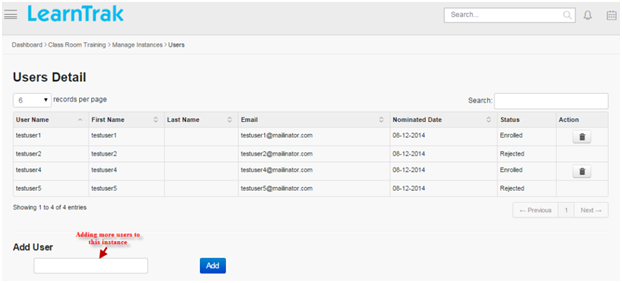
The user detail displays list of nominated users and their status, assigned to the particular training instances.
The classroom training user status can be any one of the following:
1. Enrolled: The user confirms to attend the training.2. On Waiting List: The user confirmation is in queue for the particular training.3. Pending Approval: The reporting manager does not approve the training program.4. Rejected: The reporting manager rejects the users request for the training program.Click Users > User Details screen appears with the current user details within the particular training instance.
- To add Adhoc Users:
o Click Add, to add users from the common business unit.o The multiple users can be added to the same training only if the users are not registered and the time for registration is not expired.o If the users are added for the request approval type trainings, then it bypasses the rule of approval from the reporting manager or administrator and are listed directly under My Training tab.Note
- The details of users do not appear when the training instance is completed.
- The administrator can also cancel the training nominations of any enrolled users.
7.3.3.4. Reminder Settings
- Reminders can be set at the instance level of the classroom trainings.
- The reminder settings will be local to that particular training instance.
To set reminder:
Click Reminder Settings. It is redirected to reminder settings screen.
Note
- Refer edit properties under reminder settings to set the training instances reminders.
- Respective reminder mails will be triggered for the users.
7.3.3.5. Reschedule Training Instances
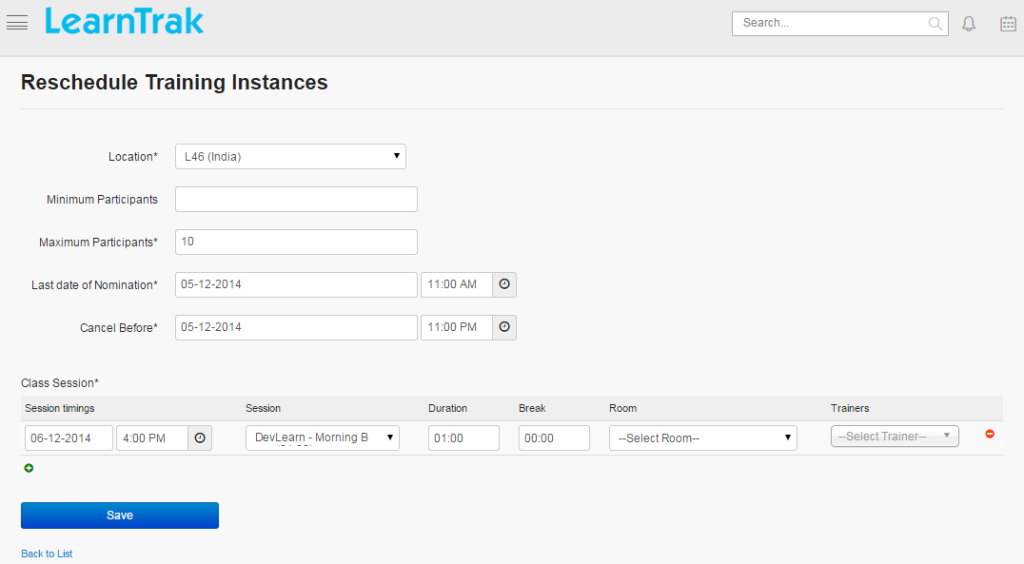
- The classroom training instances can be rescheduled at any time.
- Training’s for which the attendance already taken cannot be rescheduled.
To access:
Click Rescheduled. The following Reschedule Training Instances screen appears.
7.3.3.6. Calculate Cost
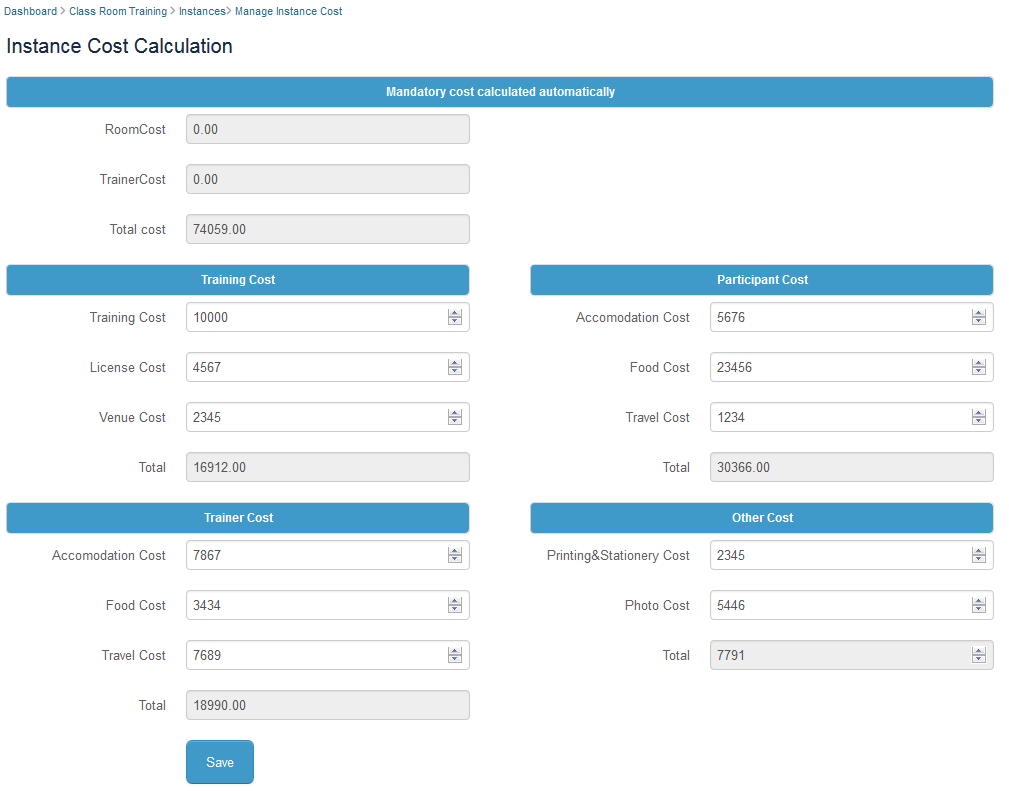
- Every classroom training’s instance cost is calculated by adding Training Cost, Participant Cost, Trainer Cost and Other Costs.
- The Room Cost, Trainer Cost and Total Cost is calculated automatically by default.
- The training cost is available to the enrolled users under
 Classroom > Training Cost.
 - This details screen display the costs on the trainings enrolled and present by the user, against the trainings the user has enrolled and is absent.
To calculate instance cost:
Click Calculate Cost. The following Instance Cost Calculation screen appears displaying respective fields to be filled.
7.3.3.7. Import Training Instances
To import instances:
• Click Import to upload training instances. The Import Instance screen appears to upload training instances via .csv file.• The .csv file size should be less than or equal to 4MB. Refer Bulk Uploading Process under Import Bulk Users.