7.3.4. Publish Training
- The new instances created for a particular training is published to the user groups.
- On user account, the published training will be displayed under Available Trainings tab, from where the users must add the trainings to his/her training plan.
- Once the training is added, it will then list under My Trainings tab, from where the users must self-nominate and attend the training.
To publish trainings:
- Click Publish. It is redirected to Training Name <sample_name> screen.
- The administrator must select and add the user group(s) from Not Published list to the Published list.
- Click
(or)
to add the training(s) to the selected user group(s).
Note
o If the training is of request approval type, then the user must get approval from the administrator or reporting manager to attend the training.
o Add Directly to Users: The selected training(s) is added directly to the users by clicking the Add Directly to Users button.
o The aim of this functionality is to allow all the published trainings to be directly listed under My Trainings tab instead of Available Trainings tab.
o The following Users screen appears to select and nominate the users to the training instances.
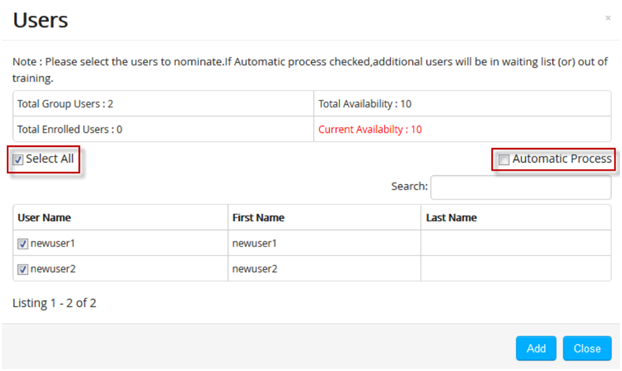 o The screen displays details like the Total Goup Users, Total Availability, Total Enrolled Users and Current Availability.- Total Group Users lists the total number of users from the selected group(s).- Total Availability lists maximum available nominations.- Total Enrolled Users list number of confirmed users.- Current Availability lists latest nominations that are in use.- To assign a single user or multiple users to the training, check the Select All option.- To assign users randomly to the training, check the Automatic Process option.* The users are randomly assigned to the training depending on the current availability count.* The next set of users (Maximum Nominations * 2) is in the waiting list.* Finally, the remaining users are assigned to the next set of training instances.o Clicko After adding the training(s) to the user group(s), it appears directly under Classroom > Training > My Training tab at user account.o The request approval type training(s) are also listed under My Training tab. On approval from the reporting manager/administrator the users are enrolled for the trainings.o The users and the respective training log details will be listed in the Audit Logs.