7.2.5. Action Plans
- The action plans are normally termed as the post training activities.
- Users can implement trainings to his/her current training project or place.
- The action plan is activated only when the current training is completed.
- The administrator has the rights to add/update the action plans for the users.
- The action plan created will be mapped to the respective training programs under the manage training module.
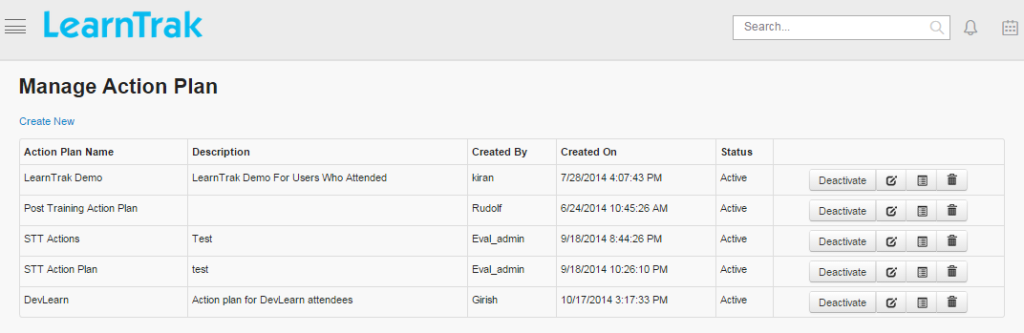
- Action plans can be created, edited, deleted and the details of the action plan can be viewed such as Action Plan Name, Description, Status, Created By and On for the trainings.
Example: For the Java program training, the concepts of OOPS, objects, threads are the action plans.
To access action plans:
Click
Admin > Classroom > Action Plans. The following Manage Action Plan screen appears displaying details on action plans.
Note
On user account, the user can review his/her action plans as a report.
7.2.5.1. Create New Action Plan
To create action plans:
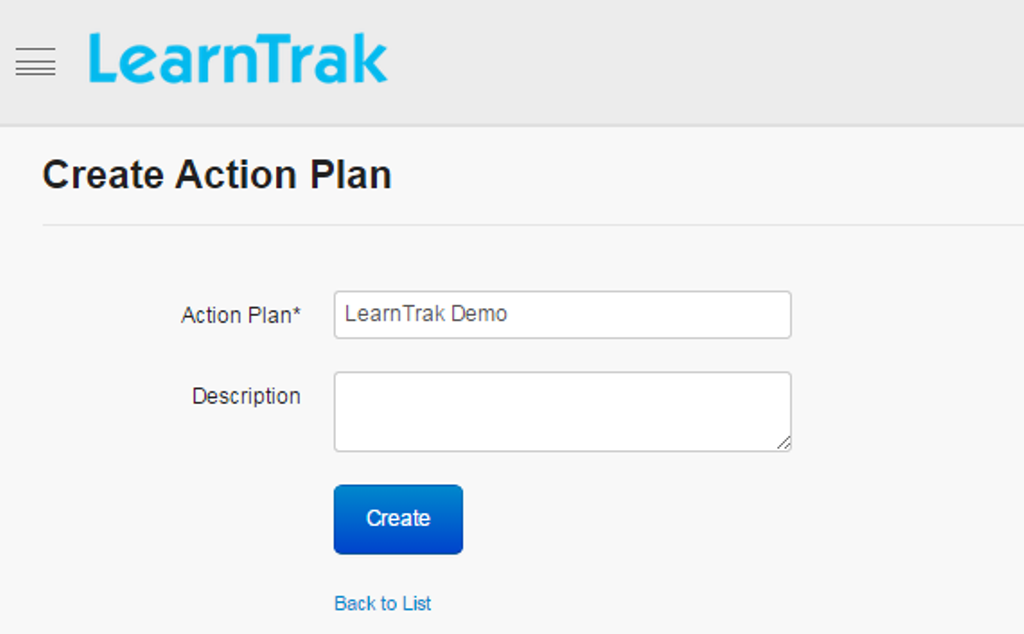
Click Create New. The following Create Action Plan screen appears with the required fields to be filled.
7.2.5.2. Edit, Delete and View Action Plan Details
To edit action plans:
Click Edit. The Edit Action Plan screen appears with the chosen fields to be edited.
To delete action plans:
Click Delete. It deletes the selected action plan. A message box prompts the message: “Do you want to delete action plan Action Plan_Name?” click Ok or Cancel.
Note
Action plans cannot be deleted, if is assigned with dependency. For example, if the action plans is mapped to the classroom trainings, then it cannot be deleted.
To view action plan details:
Click Details. The Details screen appears displaying details of the action plans created. The administrator can also edit details, by clicking Edit which is redirected to the Edit Action Plan screen.
7.2.5.3. Deactivate Action Plan
The action plan can be either activated or deactivated based on the requirements. Depending on the actions performed, the action plan is set as:
• Activate: The action plan will be listed in the drop down list, while creating the new trainings.• Deactivate: The action plan will not be listed in the drop down list.
To deactivate action plan:
Click Deactivate. It deactivates the selected action plan. A message box prompts the message: “Do you want to deactivate Action Plan_Name?” click Ok or Cancel.