7.2.12. Sessions
- The administrator can create sessions and map it to the respective classroom trainings, which is reflected during creation of new trainings under manage training module.
- Multiple sessions can be mapped to the single classroom trainings.
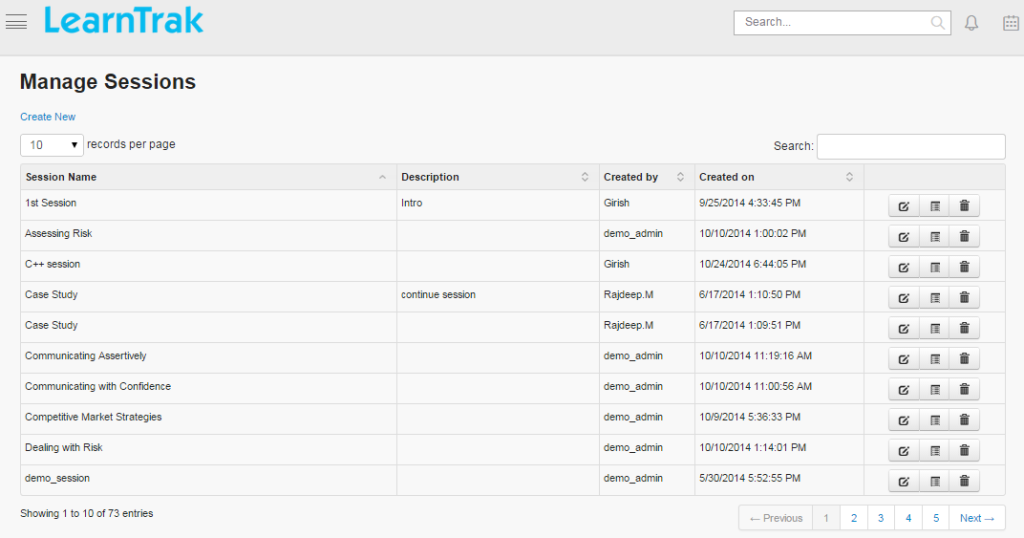
- The session can be created, edited, deleted and view details on session such as Session Name, Description, Created By and On for the trainings.
To access session:
Click
Admin > Classroom > Sessions. The following Manage Sessions screen display list of session details.
7.2.12.1. Create New Sessions
To create sessions:
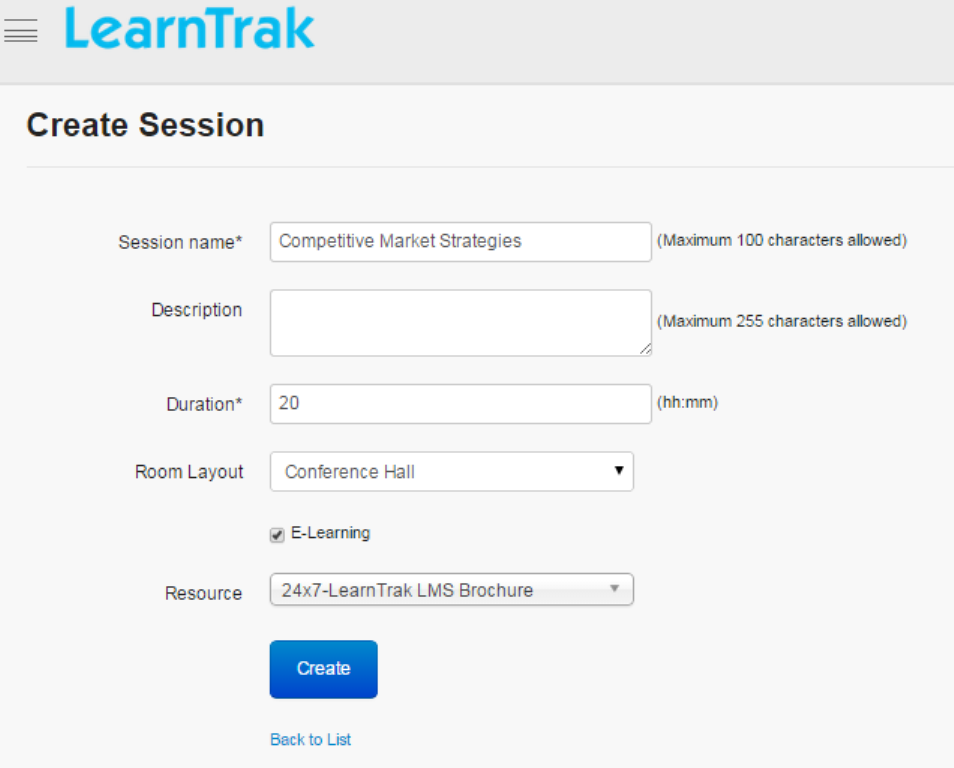
Click Create New. The following Create Session screen appears with the required fields to be filled.
Note
- The Session Name maximum character size limit is 100.
- The Description field maximum character size limit is 255.
- The Duration is in hh:mm format.
- The Room Layout is mapped to the layout of classroom training.
- E-Learning option when checked display list of mapped e-learning resources like SCORM 1.2, AICC, Experience API, Assessments, Document, URL and Video.
7.2.12.2. Edit, Delete and View Session Details
To edit session:
Click Edit. The Edit Sessions screen appears with the chosen fields to be edited.
To delete session:
Click Delete. A message box prompts the message: “Do you want to delete the Session_Name?”, click Ok or Cancel.
To view session details:
Click Details. The Details screen appears displaying details of the sessions created. The administrator can also edit details, by clicking Edit which will be redirected to the Edit Sessions screen.