7.2.6. Manage Internal Trainers
- Th internal trainers module maintains a list of internal trainers assigned to the classroom trainings.
- The internal trainers allocated are listed in the dropdown list during classroom training instances creation.
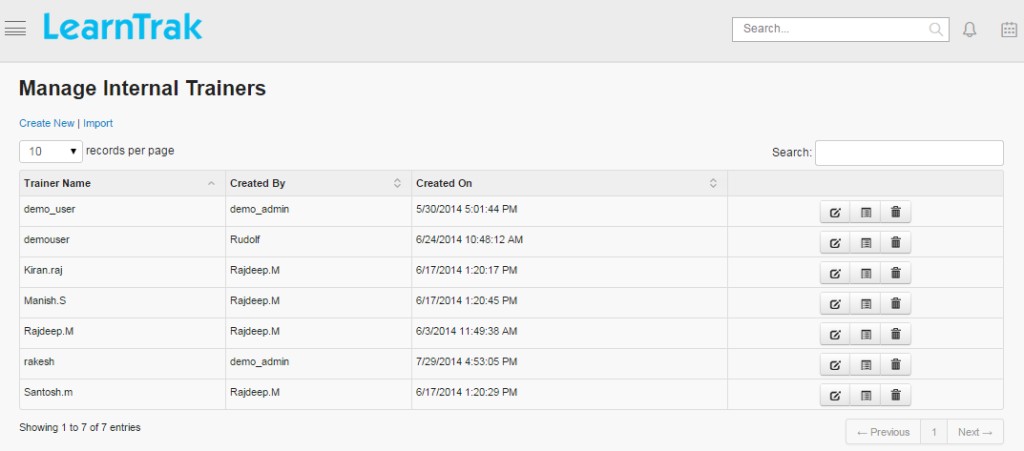
- Internal trainers can be created, edited, deleted and the details on trainers can be viewed such as Trainer Name, Created By and On of the trainings.
To access internal trainers:
Click
Admin > Classroom > Manage Internal Trainers. The following Manage Internal Trainers screen appears that displays internal trainer’s details.
7.2.6.1. Add New Trainer
To add internal trainers:
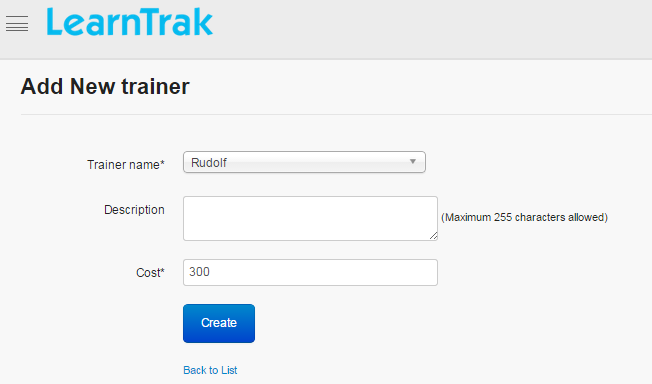
Click Create New. The following Add New Trainer screen appears with the required fields to be filled.
Note
- The trainer name can be selected from the drop down list.
- The maximum limit of characters allowed for the description is 255 characters.
7.2.6.2. Edit, Delete and View Trainers Details
To edit trainers:
Click Edit. The Edit Trainers screen appears with the chosen fields to be edited.
To delete trainers:
Click Delete. An alert box is displayed with the following message “Do you want to delete the Trainer Name?”, click Ok or Cancel.
Note
Internal trainers cannot be deleted if it is assigned with dependency. For example, if the internal trainer is mapped to a classroom training, then it cannot be deleted.
To view trainer details:
Click Details. The Details screen appears displaying details of the internal trainers created. The administrator can also edit details, by clicking Edit which is redirected to the Edit Trainers screen.
7.2.6.3. Import Internal Trainers
The internal trainers can be imported in bulk. Refer Bulk Uploading Process under Import Bulk Users.