7.2.1. Locations
- The administrator can manage the training locations under this module.
- The locations created are mapped to the users, training aids, training rooms and training holidays of the classroom trainings.
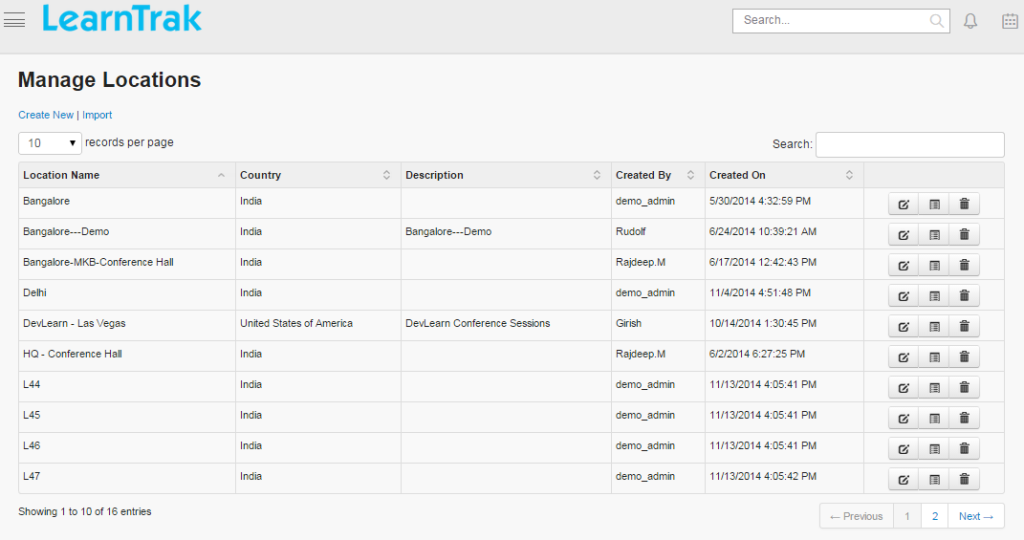
- Multiple locations can be created, edited, deleted and details of locations can be viewed such as Country, Location Name, Description, Created/Modified By and On of the particular classroom training.
To access locations:
Click
Admin > Classroom > Locations. The following Manage Locations screen appears displaying location details.
7.2.1.1. Create New Location
To create locations:
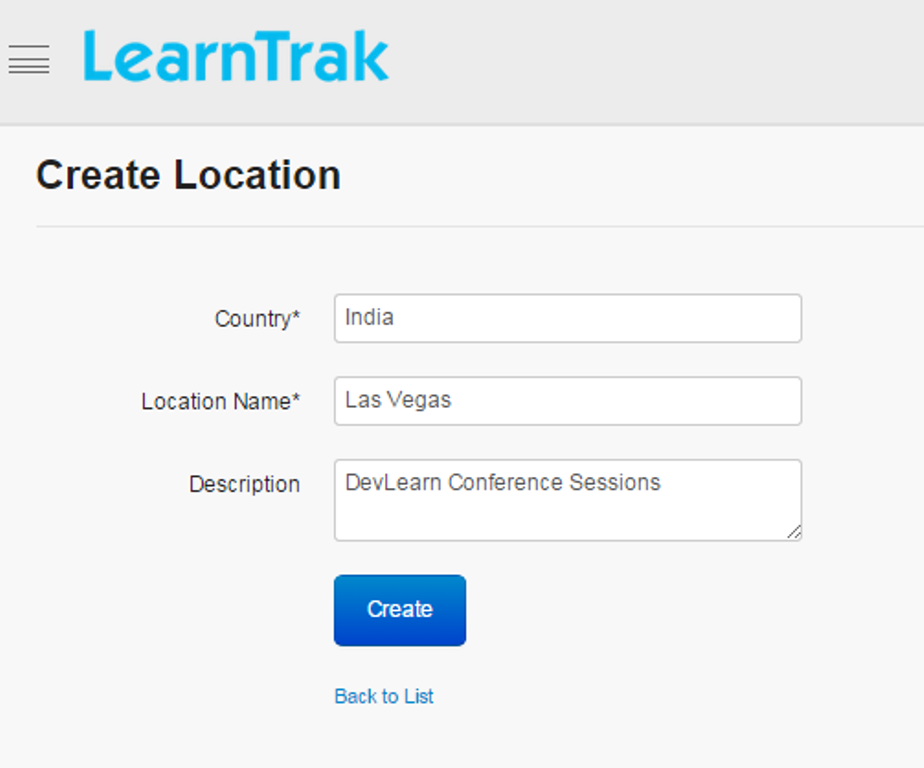
Click Create New. The following Create Location screen appears with the required fields to be filled.
7.2.1.2. Edit, Delete and View Location Details
To edit locations:
Click Edit. The Edit Location screen appears with the chosen fields to be edited.
Note
Weekly Holiday when checked, display days of a week starting from Sunday-Saturday, allowing the administrator to set the weekly holiday for a particular classroom training.
To delete locations:
Click Delete. An alert box is displayed with the following message: “Do you want to delete the Location Name?”, click Ok or Cancel.
Note
Location name cannot be deleted, if is assigned with dependency. For example, if the location is mapped to the classroom trainings, then it cannot be deleted.
To view location details:
Click Details. The Details screen appears displaying details of the location name. The administrator can also edit details, by clicking Edit which is redirected to the Edit Locations screen.