7.2.14. Categories
- The categories are created by the administrator, to manage the general categories that are mapped to both the classroom trainings and e-learning resources.
- Categories are created, edited, deleted and details on categories can be viewed such as Parent Category, Name, Description, Created By and On for the trainings or resources.
Example: Distance Education, General Category, Online Category, Soft Skills etc.
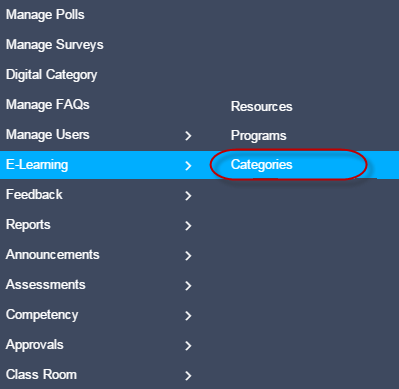
To access categories:
Click
Admin > E-Learning > Categories. The following Manage Categories screen appears that displays list of records.
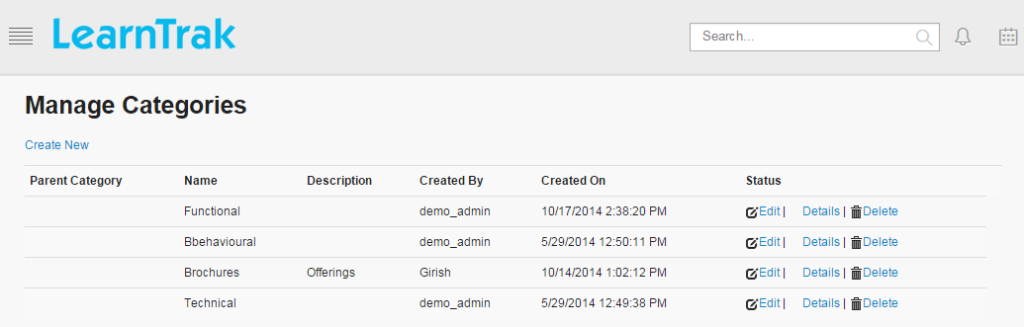
7.2.14.1. Create New Categories
To create categories:
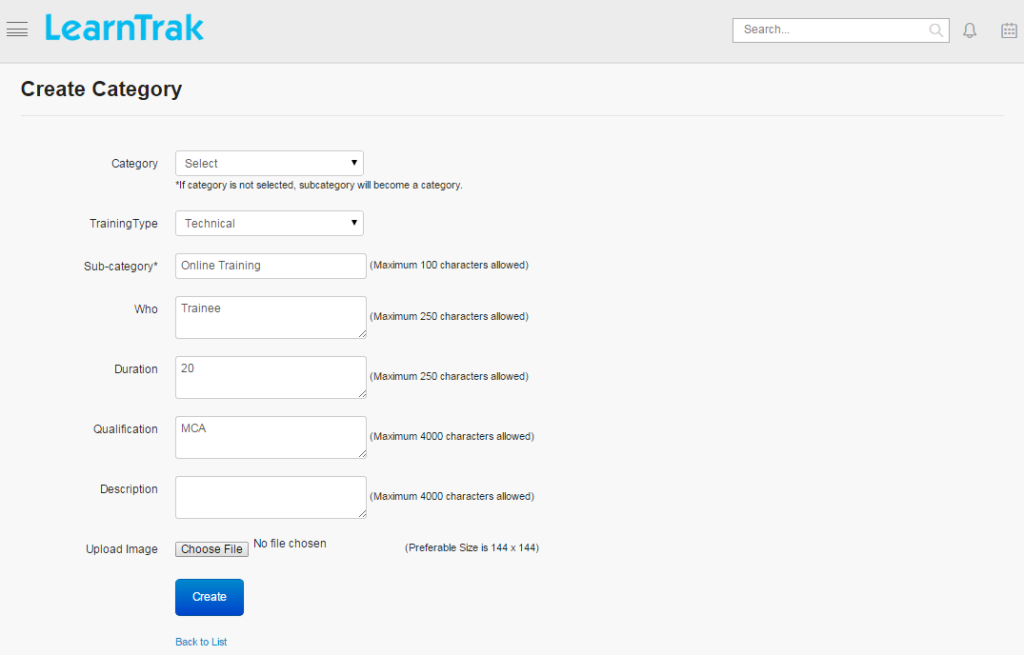
Click Create New. The following Create Categories screen appears with the respective data fields to be filled.
Note
- The Sub-Category maximum character field size limit is 100.
- The Who and Duration field maximum character size limit is 250.
- The Qualification and Description field maximum character size limit is 4000.
- Image can be uploaded with the preferable file size as 144 x 144.
Important
- If Category is not selected, the subcategory becomes the category.
- The Training Type is mapped to the classroom training type.
7.2.14.2. Edit, Delete and Details of Categories
To edit categories:
Click Edit. The Edit Category screen appears with the chosen fields to be edited.
To delete categories:
Click Delete. An alert box is displayed with the following message: “Do you want to delete the category Cat_Name?”, click Ok or Cancel.
Note
Category cannot be deleted if is assigned with dependencies, i.e., if the category is already mapped to the classroom trainings or online resources, it cannot be deleted.
To view categories details:
Click Details. The Details screen appears displaying details on categories created. The administrator can also edit details, by clicking Edit that redirects to the Edit Category screen.