7.2.8. Manage Vendors
- The manage vendors module helps the administrator to maintain a list of vendors.
- A new vendor created is mapped to the external trainer.
- The vendors can be created, edited, deleted and the details of vendors can be viewed such as Vendor Name, Vendor Code, Email ID, Created By/On of the trainings.
To access vendors:
Click
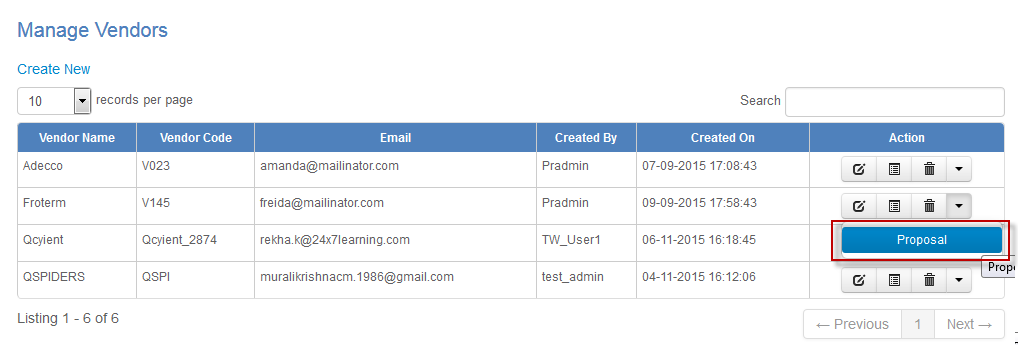
Admin > Classroom > Manage Vendors. The following Manage Vendors screen appears displaying vendor details.
7.2.8.1. Add New Vendor
To add new vendor:
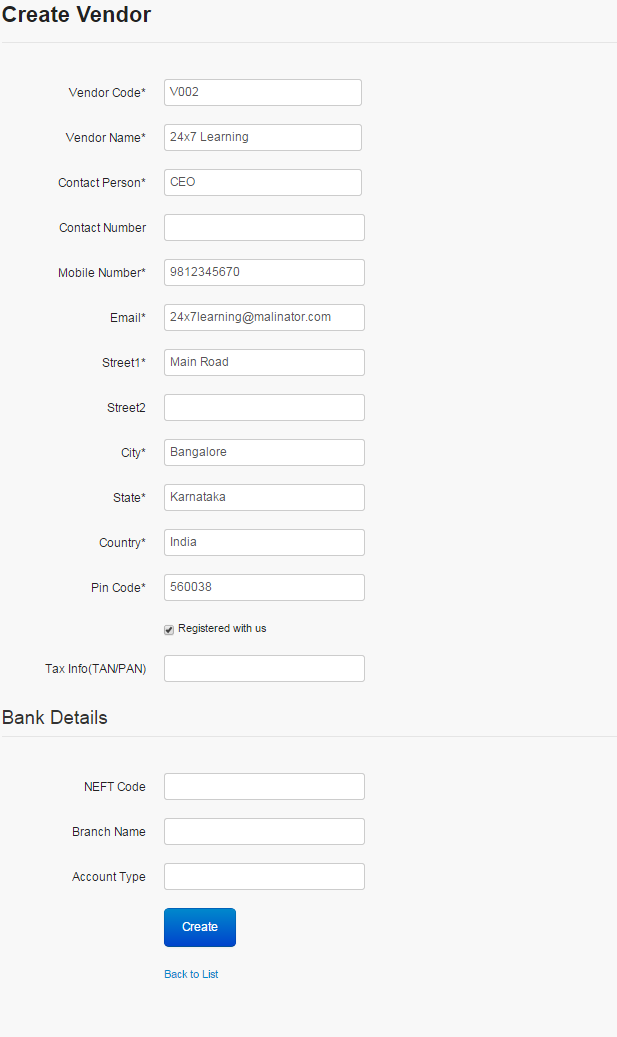
Click Create New. The following Add New Vendor screen appears with the required fields to be filled.
7.2.8.2. Edit, Delete and View Vendor Details
To edit vendors:
Click Edit. The Edit Vendor screen appears with the chosen fields to be edited.
To delete vendors:
Click Delete. An alert message box prompts the message: “Do you want to delete the Vendor Name?”, click Ok or Cancel.
To view vendor details:
Click Details. The Details screen appears displaying details of the vendors created. The administrator can also edit details, by clicking Edit which is redirected to the Edit Vendor screen.
7.2.8.3. Uploading Proposals
The administrator maintains vendor proposals by archiving it for any future references.
The proposals are maintained by uploading it to the LMS.
The proposals of type PDF/ Word document must be uploded.
To upload proposal:
* Click Admin > Classroom > Manage Vendors > Proposal. The follwing List of Proposals screen appears.* Click to upload the document.* Click View to see the uploaded proposal.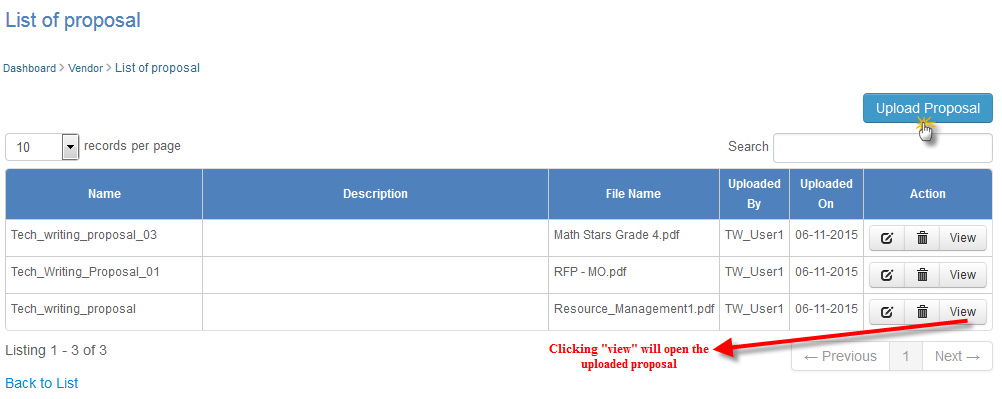
Note
The proposals are archived only for the administrators’ reference.